The meter does not move
Sound is not arriving. Check the right input is chosen under Input and that Windows allows the app to use it. The Nothing is being heard page goes through it, and the audio level guide explains the meter.
Setup guide
One short event with nobody in the room can show up the unplugged cable, the sleeping computer and the display on the wrong input while there is still time to fix them. This pre-event checklist walks through a ten-minute rehearsal, what each step should show, and what a rehearsal does not test.
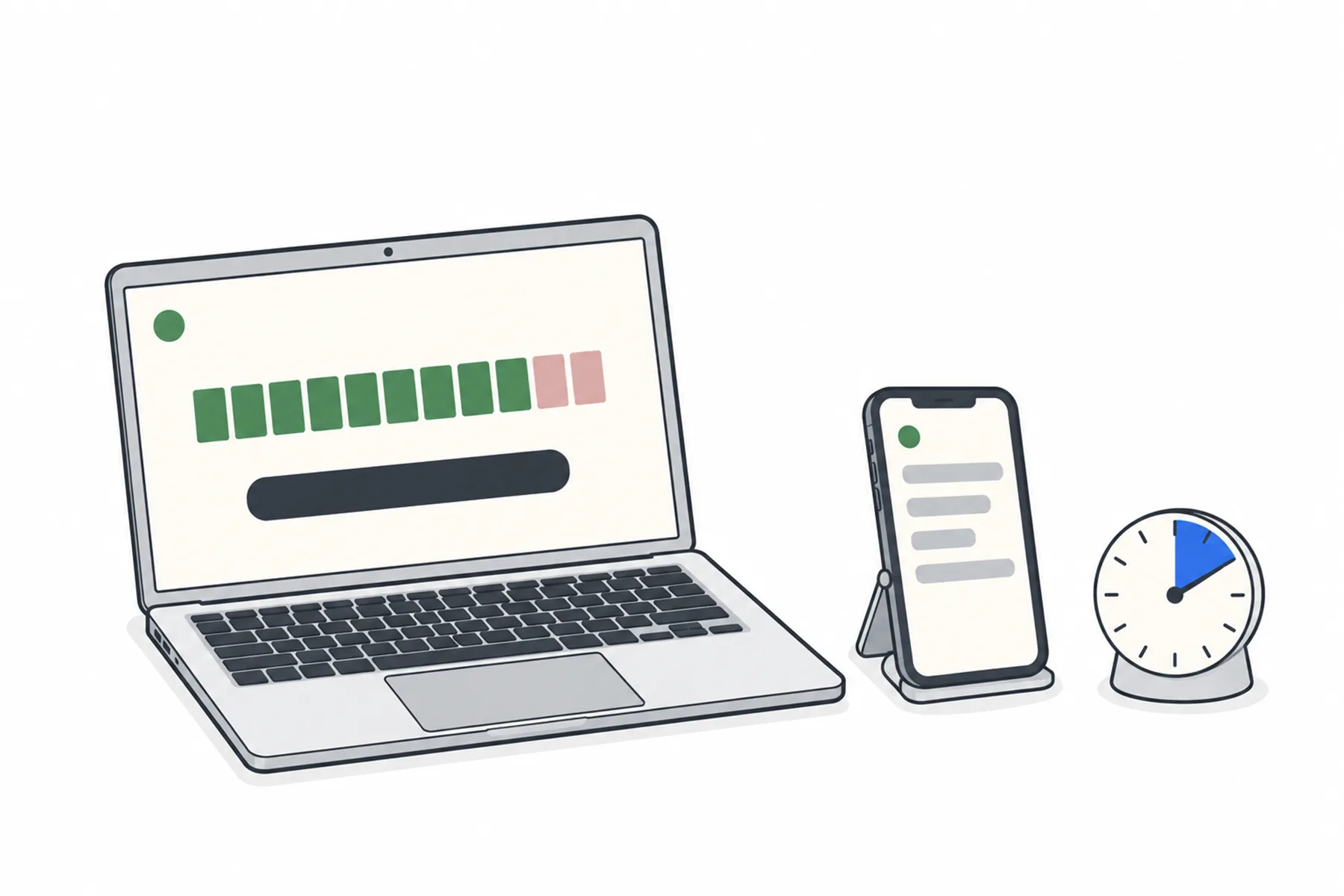
A real event, run short, with nobody in the room. You press Start, read it on your own phone, check the screens, stop, and read the record. It uses the same setup as the day, so it can catch setup problems before the audience arrives.
About ten minutes for most rooms.
These steps use the Windows desk app. If you stream from a browser, follow the browser streaming guide first, then complete the audience and output checks below.
Stop the desk computer going to sleep, and plug it in. Where your policy allows, also stop the screen locking automatically during the event. Open the desk app and check the venue name in the title bar is the venue you mean.
Under Input, keep Live device selected and choose your input. Press Refresh if something you plugged in after opening the app is missing. Have someone talk into the microphone and watch the level meter. If it moves, sound is arriving. Then check the chosen tile under Spoken in the room is the language that will be spoken.
Nobody to speak? Switch Input to Test file, press Choose a recording… and pick a WAV or MP3 of someone speaking. It plays as if it were the room. Tick Hear it on this PC if you want to hear it too.
A test file checks the app and the audience outputs. It does not test your microphone, mixer or audio connection. Before the event, switch back to Live device and have someone speak into the microphone you will use.
Press Start streaming. The status should go to Connecting and then Live, and the line under the button should read the venue name followed by “listening for” and the language.
If the app cannot start, a red notice appears above the Input panel and the status reads Refused, No connection, Audio or Streaming key missing. The help centre page The app will not start streaming lists each one and what to do.
Use Links & QR in the app, or the QR code on your venue page. Scan it rather than typing it, because that is how the audience will do it.
First choose a language you or a helper can understand. Read a few full sentences and check their meaning against what was said. Then try another language to check switching, and a different script such as Arabic or Chinese to check that it displays. Each change clears the page and starts fresh in the new language. If the venue has spoken translation on, press Hear the translation with earphones in and listen for a sentence.
Skip the ones you will not use on the day.
Press Pause audio in the app. Your phone should show Paused. Press it again to resume. Pausing keeps the event on air with nothing translated, which is what you want for music or a break.
If someone will moderate, have them sign in to the moderator page on their own device and change the spoken language once. The tile in the app should follow. Then change it back to the language that will open the event, and confirm the app shows the correct selection.
Press Stop streaming. Your phone should show Off air. Then sign in to the portal. The event appears under Recent sessions on the Overview, with how long it ran, and under the venue’s Transcripts tab with what was heard and how it was translated.
Read a few lines. If a name came out wrong, add it under Glossary, Names to listen for, then repeat the sentence to check the result. The names and terms guide shows how.
Before you leave, check you are ready for the event: Live device selected as the input, the spoken language set to the one that will open the event, and the rehearsal stopped (Off air).
Do the rehearsal after the first setup, and again after anything changes at the desk.
A pre-event checklist. Skip the rows you will not use on the day.
| If you use | Check | What it should show |
|---|---|---|
| Phones only | The audience link, scanned on your own phone | Text arrives in the language you pick, the meaning is right in a language you understand, and changing language starts fresh. |
| A room screen | The projector page in fullscreen (F) | Readable from the back of the room, with the logo where you expect it. |
| Streamed video | The caption overlay in your scene, then a recording or private test stream on another device | The band appears when text arrives, and the captions are readable and acceptably timed. |
| Spoken translation | Hear the translation, with earphones | You hear a sentence in the language you picked. |
| A headphone system | A receiver on your own head, from an audience position | The same sentence arrives through the receiver. |
| A moderator | The moderator page on their own device | Changing the spoken language there moves the tile in the app. |
That is what the rehearsal is for. Each of these has a fix before the day.
Sound is not arriving. Check the right input is chosen under Input and that Windows allows the app to use it. The Nothing is being heard page goes through it, and the audio level guide explains the meter.
A red notice above the Input panel and a status of Refused, No connection, Audio or Streaming key missing tell you which. The help centre page lists each one.
Check the app says Live, that you scanned the code for the same venue, and that your phone has a connection. The Nothing on the screen page covers it.
Spoken translation is a setting on the venue. If it is switched off, the option does not appear on anyone’s phone. Turn it on in the venue’s Settings tab, then try again.
Check the projector page is fullscreen and the room screen is sized for the room. Look from the furthest seat before the day.
Check the overlay is added to the scene you are streaming from, and that text is arriving. The captions over video guide covers it.
Check they signed in to the moderator page for the same venue, and that the desk app is live. Try changing the language once more.
A single run stops at 3 hours, and a run with nothing heard and nobody listening stops after 45 minutes. A rehearsal left running trips the second one. Press Start again.
Still unsure
Tell us the room and what you will use, and we will tell you what to check.
Talk to usThe free credit lets you rehearse with your own setup. No credit card needed.
A$10 of free credit when you sign up, no credit card needed. Credit never expires — use it this week or next year.