The desk app says Reconnecting
Give it a few seconds. It keeps trying until it succeeds or you press Stop streaming. If it keeps dropping, move the computer to a wired connection for the rest of the event and look at the Wi-Fi afterwards.
Setup guide
Live translation needs a steady internet connection at the desk, on the audience’s phones and on any screen in the room. This guide shows what each connection needs, how to protect the one that matters most, what happens if it drops, and how to test it before the day.
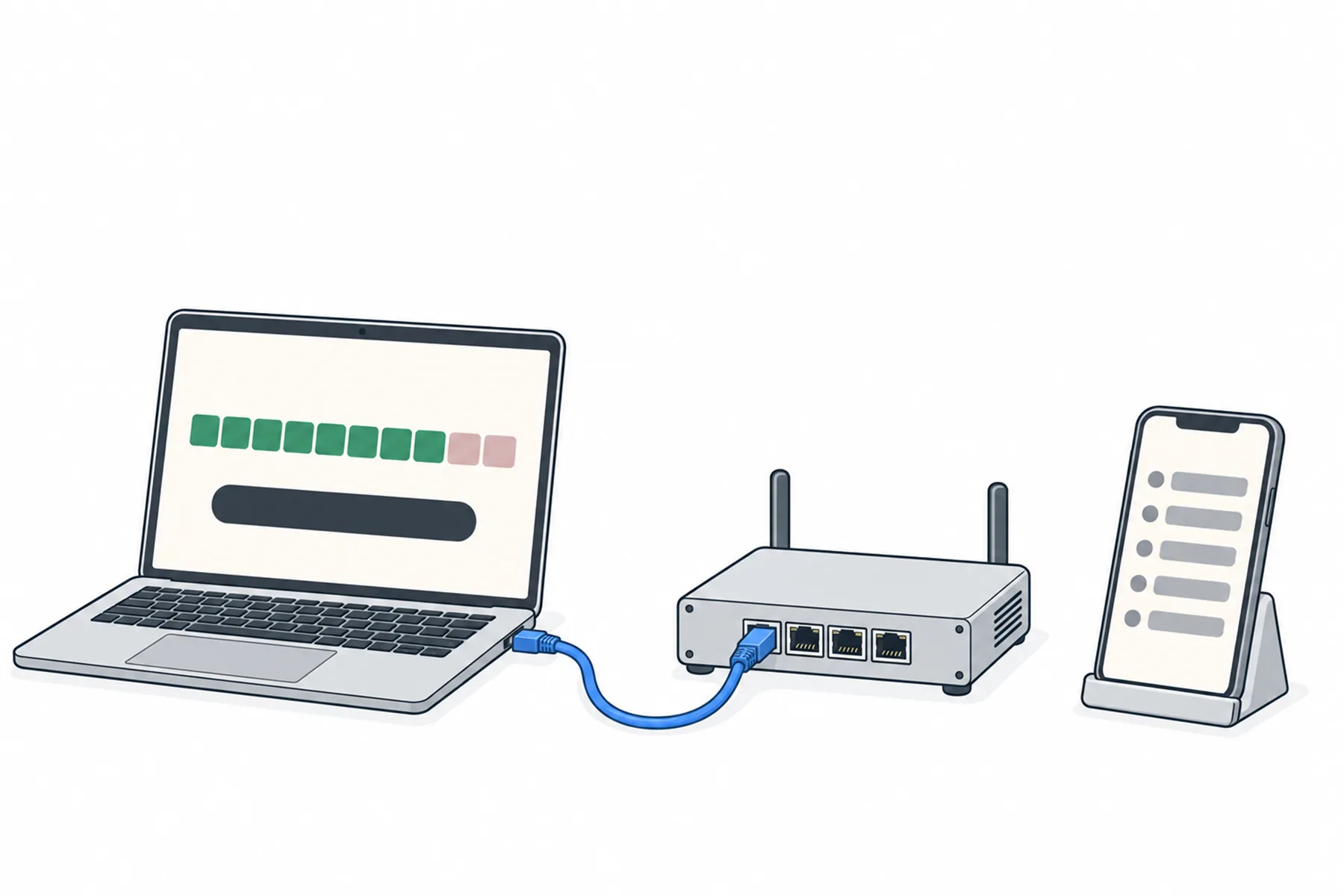
The sound goes out from one place and the words come back to many. The connection at the sending end matters most. A problem on one device may affect only that device; a shared Wi-Fi, router or internet problem can affect several phones and screens together.
Most problems are congestion or a weak signal, not speed.
Live translation uses several connections at once, and each can fail on its own:
This is the one that matters most, so give it the best connection in the room:
Ethernet removes the wireless link from the streaming computer. It does not protect against a fault in a shared router or the venue’s internet service. A separate “staff” Wi-Fi name does not necessarily give separate capacity either, because it may share the same access points and internet connection. For a large audience, ask the venue to reserve capacity for the streaming device.
People read on their own phones, on the venue’s Wi-Fi or on their own mobile data. The reading page itself is light, but a venue with a large audience and a guest Wi-Fi network should expect many phones to join it, and a congested network makes the words arrive late for everyone on it. Reading the words and listening to spoken translation place different demands on the connection, so if many guests will listen through the venue’s Wi-Fi, test that as well as the text.
If a phone loses its connection, the reading page shows No connection and the line “Check your internet. This page reconnects by itself.” It does. While the event is on air, the service sends a reconnecting phone the recent lines it kept, up to the last 30 minutes, so the text it missed is normally back; test this on your own phone. Spoken translation is live: do not assume audio missed during a drop is replayed.
The projector page and the caption overlay each need their own connection, on whatever computer is driving them. If that connection drops, the projector shows a small red dot in the bottom corner, and the overlay shows a red reconnecting… label. Both reconnect on their own.
The overlay label is drawn on the page itself, so it can appear on your video output while it lasts. If a device is feeding a headphone system, give it the better connection of the two you have, because everyone holding a receiver depends on it.
If the streaming connection drops, the desk app says Reconnecting in red and counts the attempts. It retries after 1, 2, 4 and 8 seconds, then every 10 seconds, and it does not give up until you press Stop streaming. Give it a few seconds before changing anything. When it succeeds the line under the button says Back on air. The browser streamer shows Reconnecting with the seconds until its next try, and also keeps trying by itself.
For an event that matters, have a second route ready, such as a phone you can use as a hotspot or a second connection. It needs usable mobile coverage in the room and enough data. Switching may interrupt the event, and a hotspot on the streaming computer does not restore a projector or a headphone-feed device that is on a different connection. Test the switch before the day.
A connection that works for you in an empty room may behave differently with a hall full of phones on it. Run a short event and check:
A ten-minute test is a first check, not proof that the connection will hold for a whole event.
A full hall behaves differently from an empty one. On the day, ask the first arrivals to scan, check words arrive on both Wi-Fi and mobile data, and keep the spare route within reach.
Each one reconnects on its own. Speech that never reached the service while the sender was down is not recovered. A reconnecting phone is sent the recent text the service kept, but spoken audio is live.
| Connection | What it does | If it drops |
|---|---|---|
| Desk app or browser streamer | Sends the speaker’s sound out | Shows Reconnecting and keeps retrying. Speech during the outage is not recovered. |
| Audience phone | Receives the words | Shows No connection and reconnects by itself. Only that phone is affected. |
| Room screen | Shows the words in the room | A small red dot appears in the corner, and the screen reconnects by itself. |
| Caption overlay | Puts the words over the video | A red reconnecting label appears and the overlay reconnects by itself. |
| Device feeding a headphone system | Plays the spoken translation into the transmitter | Everyone on that language’s receivers is affected until it reconnects. |
Check the connection before you change anything else.
Give it a few seconds. It keeps trying until it succeeds or you press Stop streaming. If it keeps dropping, move the computer to a wired connection for the rest of the event and look at the Wi-Fi afterwards.
A few seconds is normal. If it is much more, check the sender first: its connection status, the Live chip, and that the audio input still moves the meter. Then compare two phones on different networks, one on venue Wi-Fi and one on mobile data. If both stay behind and the sender looks healthy, note the time it happened and contact us.
Ask that person to switch between Wi-Fi and mobile data, or reload the page. One phone on a bad connection behaves exactly like a phone with nothing on it.
Check whether another website opens. If the Wi-Fi has a sign-in page, they need to complete it first. Suggest mobile data if the network is crowded.
The app could not reach SpanVoice at all. Check the computer’s internet. The hint line under the button shows the reason it was given.
The connection was down for longer than five minutes, so a fresh event started and the screens cleared. Readers see the new words as they come.
That page has lost its connection and is retrying by itself. Check the internet on that computer.
Still unsure
Tell us the room and the connections it has and we will tell you where the risk is.
Talk to usRun a short test event in your own room. No credit card needed.
A$10 of free credit when you sign up, no credit card needed. Credit never expires — use it this week or next year.