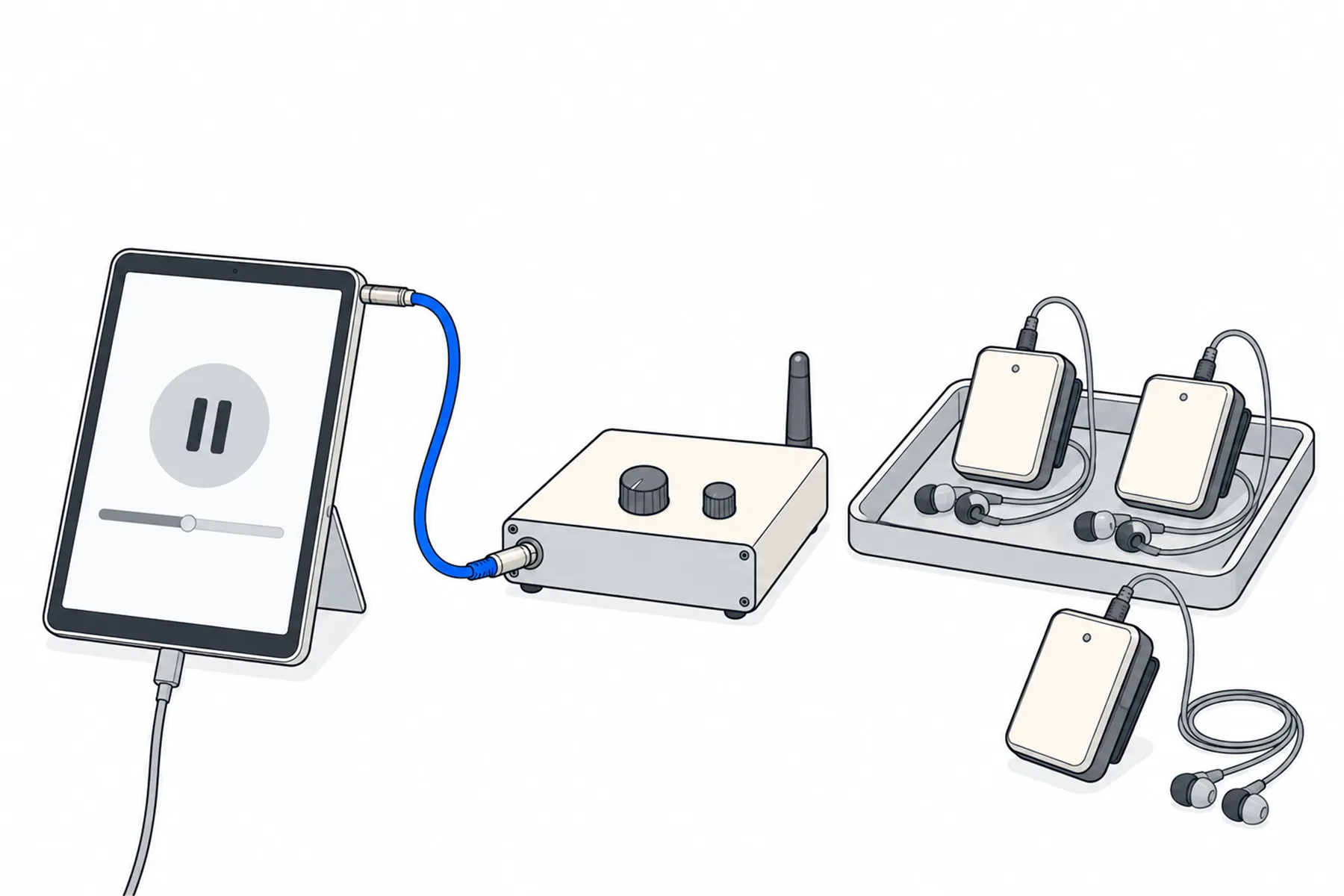
Send live translation through your existing headphone system.
Connect a phone, tablet or laptop to your wireless transmitter. Play one language of the
spoken translation on the device, then connect its audio output to a compatible input on the
transmitter; receivers tuned to that transmission hear the selected language. This guide
shows which device and link to use, how to match the lead to your transmitter’s input,
how to set the level, and what each extra language needs.
SpanVoice turns the room’s sound into a spoken translation. A spare device plays
one language through its headphone output into the transmitter you already own, and the
receivers you already hand out carry it to every seat. Many systems can take the feed, provided
the input type, level and connection are compatible. The sound desk and the desk app on the way
in are unchanged; this guide is about the way out.
SpanVoicespoken translation
internet
Player deviceaudio link, one language
3.5 mm
Transmitterline input
RF, IR or FM
Receiversat the door
earphones
Listenersthe language on that channel
What you are building. Each extra language is another device into another channel.
Feed your headphone system in six steps
One device, one lead, one level. Save the setup and check it before each event.
1
Switch spoken translation on for the venue
In your SpanVoice admin, open the venue, go to the Settings tab and
under Spoken translation make sure Available at this venue
is on. Until it is, the audio link plays nothing. Leave Already on when someone
arrives off: the device feeding the transmitter switches voice on itself, and the
people reading on their own phones are not charged for a voice they did not ask for.
Spoken translation is charged per minute for each language being listened to, not per
listener. A transmitter feeding forty receivers costs the same as one phone listening.
2
Pick one player device per language
The transmitter needs a sound source. Any device that can open a web link and play
sound will do: a Windows computer, a tablet, a spare phone. One device sends one language,
so a second language on a second channel needs a second device.
The most reliable source is the venue’s Audio link,
spanvoice.com/a/<venue code>/<language code>, played in a media
player such as VLC through its open-network-stream option. It is on the venue’s Overview
page under For your team and in the desk app under Links & QR.
A media player may keep playing with the screen off (test your exact device and settings first) and has nothing on screen to tap by
mistake. The audience reading page works too: open it, choose the language, press
Hear the translation.
A phone or tablet with no headphone socket needs an audio adaptor on its USB-C or
Lightning port, and a way to stay powered at the same time: either an adaptor with a
charging pass-through, or a device that lasts the whole event on battery. Test the
adaptor with the media player before the day; not every adaptor passes audio.
Before the event, on that device: plug in the power, turn on do-not-disturb, set the
screen to stay on while charging, and give it the better internet connection if you have a
choice. It is now feeding everybody with a receiver.
SpanVoicespoken translation
internet
Player deviceaudio link in a media playerone per language
headphone out
Your transmitterline or aux input
The device plays one language; its headphone output goes into the transmitter you already own.
3
Cable the device into the transmitter
The device’s headphone socket is an unbalanced stereo output at
headphone level. The transmitter end is decided by its input type, not by the
size of the socket; two inputs can take the same plug and be wired differently. Find the
input specification in the transmitter’s manual or on its rear panel, then pick the
lead to match:
Stereo aux input (3.5 mm or twin RCA): a 3.5 mm stereo lead, or a
3.5 mm-to-twin-RCA lead. The simplest case.
Unbalanced mono input (6.35 mm TS or a single RCA): do not join the
device’s left and right outputs together with a plain splitter or a TS plug; that
shorts the two channels. Use a lead or adaptor built for stereo-to-mono summing (with
resistors), or play the audio link in mono on the device if the player allows it. The
translation is mono, so nothing is lost either way.
Balanced line input (XLR or 6.35 mm TRS, line level): a 3.5 mm-to-XLR
lead only works if it is wired for an unbalanced source into a balanced input; many
are not. A small direct box (DI) with a 3.5 mm or RCA input is the reliable
choice; it also removes hum.
Microphone input (XLR, mic level): a headphone output is far too hot.
Switch the input to line if it has a switch; otherwise use a DI with a pad, or an
attenuating lead made for the purpose.
USB input (some newer systems): connect by USB and choose the transmitter
as the playback device on the computer. No analogue audio lead is needed.
For a Windows computer that will do this every week, a small USB audio interface on the
computer gives a cleaner, balanced line output than the headphone socket, and the same
interface serves the desk app on the way in.
If a hum appears when the lead goes in, unplug the device’s charger for a moment. If the
hum stops, it is a ground loop: an inline isolator on the lead, or a DI with its ground
lift pressed, fixes it. If the hum stays, look at the lead itself and at anything running
nearby that may be inducing interference.
4
Set the level, then leave it
Follow the transmitter’s own guidance for its input first. As a rule, bring the
device’s volume up high and set the final loudness on the transmitter’s input gain,
watching its peak or clip indicator: a quiet device pushed hard at the transmitter gives
hiss; a loud device into a low gain gives a clean signal. If the transmitter has an
automatic level control, let it do the work and keep the device out of clipping.
Put on a receiver. Speech should sit comfortably below any peak or clip light on the
transmitter, with no crackle on loud words.
Between sentences the device plays silence. If the transmitter has a
mute-on-silence or auto-off feature, turn it off, or
receivers will click in and out on every sentence.
Nothing on the device changes by itself, but a system update or a swapped lead can.
Put a receiver on for ten seconds before each event.
5
One language per channel
Each language that plays at the same time needs its own playback feed and its own
transmission path. A transmitter with a channel selector usually sends one
programme at a time on the channel you pick; selecting channel 2 does not add a second
input. So a second simultaneous language means either a second transmitter on a
different channel, or a system designed with several independent audio inputs. Check the
manual for how many inputs transmit at once. The language channels guide covers planning and testing several channels.
The simple setup is one player device per language, each into its own transmitter.
Label the receivers or channel numbers by language at the door, and keep the devices apart
so nobody swaps leads in the dark.
People who want a language you are not transmitting, or who would rather read, use their
own phones at the same time. The receivers and the phones hear the same translation from
the same session.
Device ASpanish
lead
Transmitter 1channel 1
to receivers on 1
Receiversset to 1 or 2
A second device set to a second language feeds a second transmitter on channel 2. One transmitter, one language at a time.
6
Test with a receiver before the doors open
Start a short session from the desk, say a sentence, and listen on a receiver from the back
of the room. You should hear the translation a few seconds after the sentence ends. Walk to
the far corners to check coverage, which is the transmitter’s job, not SpanVoice’s.
Then stop the session. Whether the player picks up again by itself when the real event
starts depends on the device and the player, so check it on yours; if it does not, press
play when the event goes live.
Which systems this works with
Many systems can take the feed, provided the input type, level and connection are compatible. Match the lead to the input, not the socket.
Typical input on the transmitter
Lead from the device
Watch for
RF belt-pack systems (UHF/VHF)
Unbalanced stereo or mono aux (3.5 mm, 6.35 mm), or balanced XLR with a mic/line switch.
Stereo lead for a stereo aux; a summing lead for a mono input; a DI for a balanced or mic-level input.
Mute-on-silence off. One transmitter per simultaneous language.
FM assistive-listening transmitters
Unbalanced line or aux input, often beside a separate microphone input.
Lead matched to the line input; never the microphone input.
Some have automatic level control; set the device volume high so it has something to work with.
Infrared systems
Line input on the modulator (unbalanced or balanced), radiators on the wall.
Lead or DI matched to the modulator’s input type.
Line of sight to the radiators is the system’s job; the device does not change it.
Wi-Fi or app-based systems
A line input on the server box, or a USB input.
Lead matched to the line input, or a USB connection with no audio lead.
Two network hops: give the player device a wired or strong connection.
Hearing loop
Line input on the loop amplifier (often balanced).
DI or a correctly wired lead into the loop amplifier’s line input.
A loop carries one programme for the whole room and is usually reserved for the original language for people with hearing aids; use it for translation only if the room agrees. See the PA and hearing loop guide.
Troubleshooting your headphone-system feed
Put on a receiver and listen; then check the player device, the lead and the transmitter in that order.
Nothing on any receiver
Check in order: a session is live and someone is speaking; the player device is playing the audio link (its own volume is up and it is not muted); the lead is in a line or aux input, not a microphone input; the transmitter is on the channel the receivers are set to.
Hiss on every receiver
Usually the device volume is low and the transmitter gain is high. Raise the device, lower the gain, and check the lead is seated at both ends.
Clicks or dropouts between sentences
Check in order: a mute-on-silence or auto-off feature on the transmitter; the device’s power saving or a network interruption on the player; radio coverage where the receiver is.
A ringtone or a notification in everyone’s ears
The player device is not on do-not-disturb. Set it, or use a device with no SIM.
It stops after a while
Most often the device locked its screen or paused the browser. Use the audio link in a media player, keep the screen on while charging, and test background playback on that device before the day.
Distorted on loud words
Check the input type (a microphone-level input needs a pad or DI) and then the gain: too much on the device or on the transmitter clips either way.
The wrong language
The device is set to another language, or two devices had their leads swapped. Label the leads.
Still unsure
Questions from the door
Tell us the make of your transmitter and we will tell you which socket and which lead.
The translation follows the speaker by a few seconds, as it does on the phones; how many varies
with sentence length. Earphones do not block the room, so listeners hear the speaker and then
the translation, much as they would with a human interpreter.
Can I feed the receivers from the same computer that runs the desk app?
Yes. The desk app uses an input; the media player uses an output. A USB interface with both
keeps them tidy. If the computer is already busy, a tablet is simpler and cannot be knocked
by whoever is at the desk.
Do I pay per receiver?
No. Spoken translation is charged per minute, per language being listened to. The device feeding
the transmitter is one listener, however many receivers hang off it.
What if we do not own a headphone system?
You do not need one. Phones do the same job in as many languages as people ask for, with no
separate receiver fleet to charge, clean or collect. Our comparison with headset hire goes
through the numbers.
Can the receivers carry the original language for people who are hard of hearing?
That is what the system did before; keep one channel for it if you have more than one. SpanVoice
carries the translation, not the room feed.
Where to go next
Put one language in the receivers tonight.
The free credit lets you test the setup on your own system. No credit card needed.