The desk app
Run it from the sound desk.
Two ways to feed a session. The Windows app at the sound desk, on a feed from the mixer; or a browser tab on any computer, with the microphone it already has. Same session, same captions, whichever you pick.
The desk app, and the browser
Both feed the same session. Pick the one that suits the room.
-
The Windows app
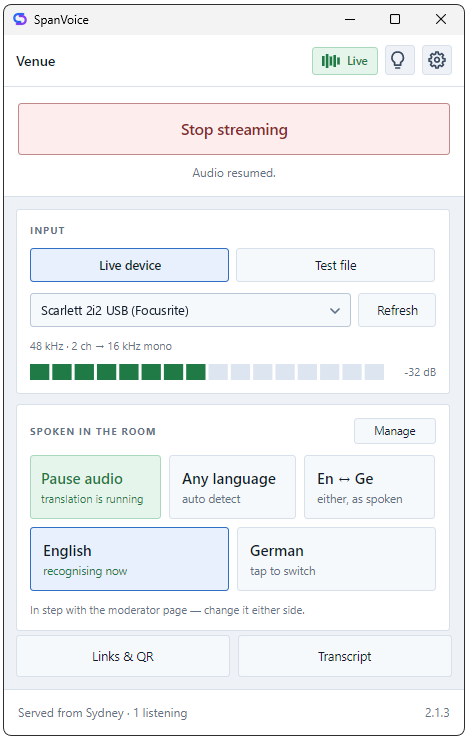
At the sound desk, on a feed from the mixer. Pick the input, watch the level, start.
-
The browser
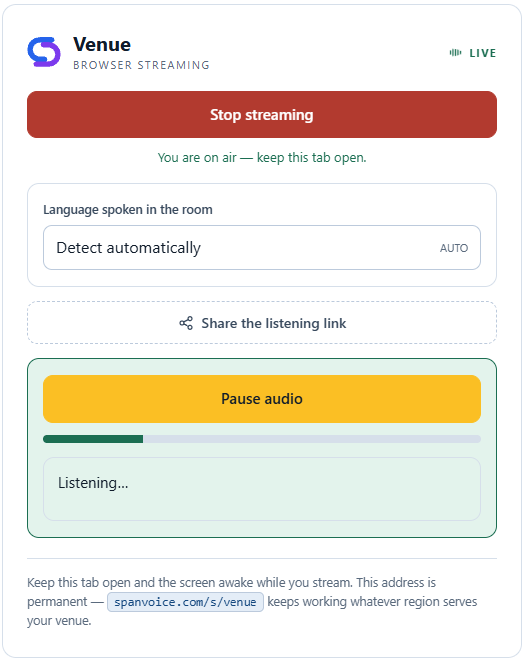
On any computer, with the microphone it already has. Open the page, choose the microphone, start.
Which one to use
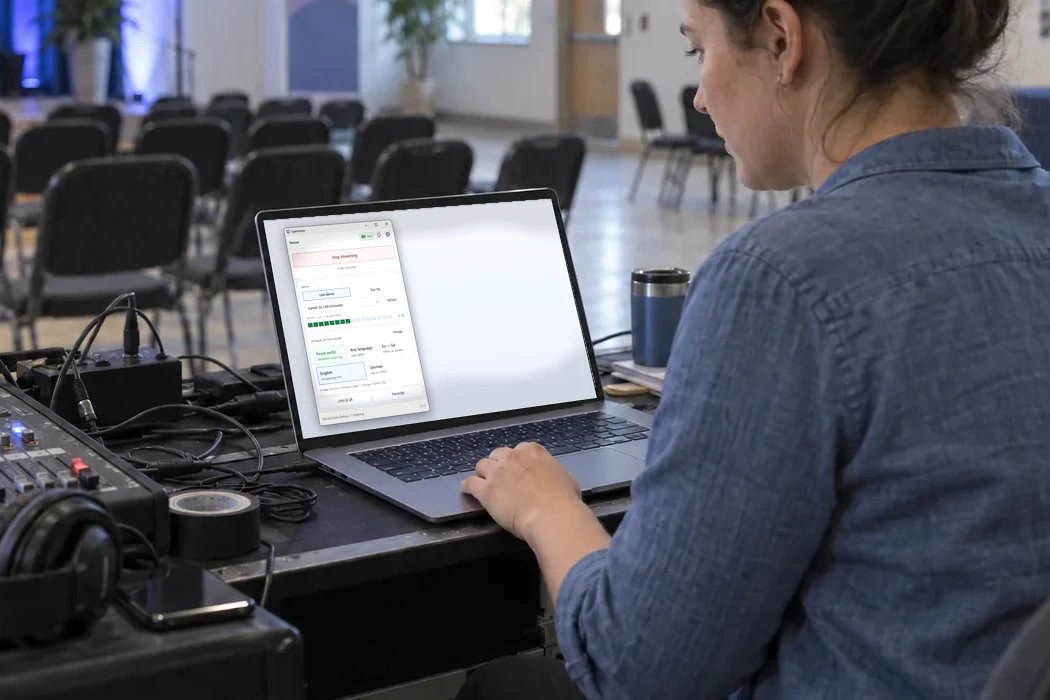
The Windows app is for a venue with a sound desk: a mixer, an audio interface with more than one channel, and an event that runs for an hour or two without anybody touching the computer. It takes a direct feed from the desk and gives you the level and the input choice a technician expects.
The browser is for a room with no desk at all: a laptop or a tablet on a lectern, a Mac, a guest speaker who will never install anything, a talk outdoors. Open the page, choose the microphone, start. There is nothing to put on the computer.
Whichever you use, the audience sees the same thing. The app and the browser feed the same session, so the phones, the screen and the stream do not know or care which one is at the other end.
What the desk app gives you
Four things a technician reaches for, built in.
-
Pick the input
Every input Windows can see is in the list, including multi-channel interfaces. Choose the one carrying the feed and leave the rest.
-
See the level before you start
A meter shows what is coming in before anything goes out, so you find the live input and set it right while the room is still empty.
-
Rehearse with a recording
Switch the input to a file and run the session from a recording. Set up and test the whole chain without a speaker in the room.
-
Pause from the desk
One button pauses the audio and one resumes it, without stopping the session. Nothing leaves the machine until you press Start.
A direct feed beats a room microphone
A laptop microphone hears the room: the speaker at a distance, the audience, the air conditioning, the chair that scrapes. A feed off the desk hears what you route to it — the speaker’s microphone, and not the room. The difference is the difference between a clean line and a line with the room in it.
Take an aux send or a direct out from the mixer into an interface, and choose that interface in the app. Mute the channels you do not want on the send. From then on the session gets exactly what the front-of-house engineer is hearing, at the level they set.
Getting the app
There is no public download. The app is no use without an account, so once you have signed in, the download is on your venue page. It runs on Windows 10 and 11, is signed by ARKNET PTY LTD, installs for every user of the machine, and keeps itself up to date.
The browser needs nothing. Your venue has a permanent streaming address; open it in a current browser on any computer and it is ready to start.
Wiring the desk to it is covered step by step, with diagrams, in How to connect a mixer to your computer.
Before your event
A few good questions.
Not sure which way to feed your room? We can help you work it out.
Talk to usDoes it work on a Mac?
Can I use the audio interface I already have?
Is there a charge for the app?
Start from your own desk.
Sign in, open the app or the browser page, press Start, and the room reads along.
A$10 of free credit when you sign up, no credit card needed. Credit never expires — use it this week or next year.