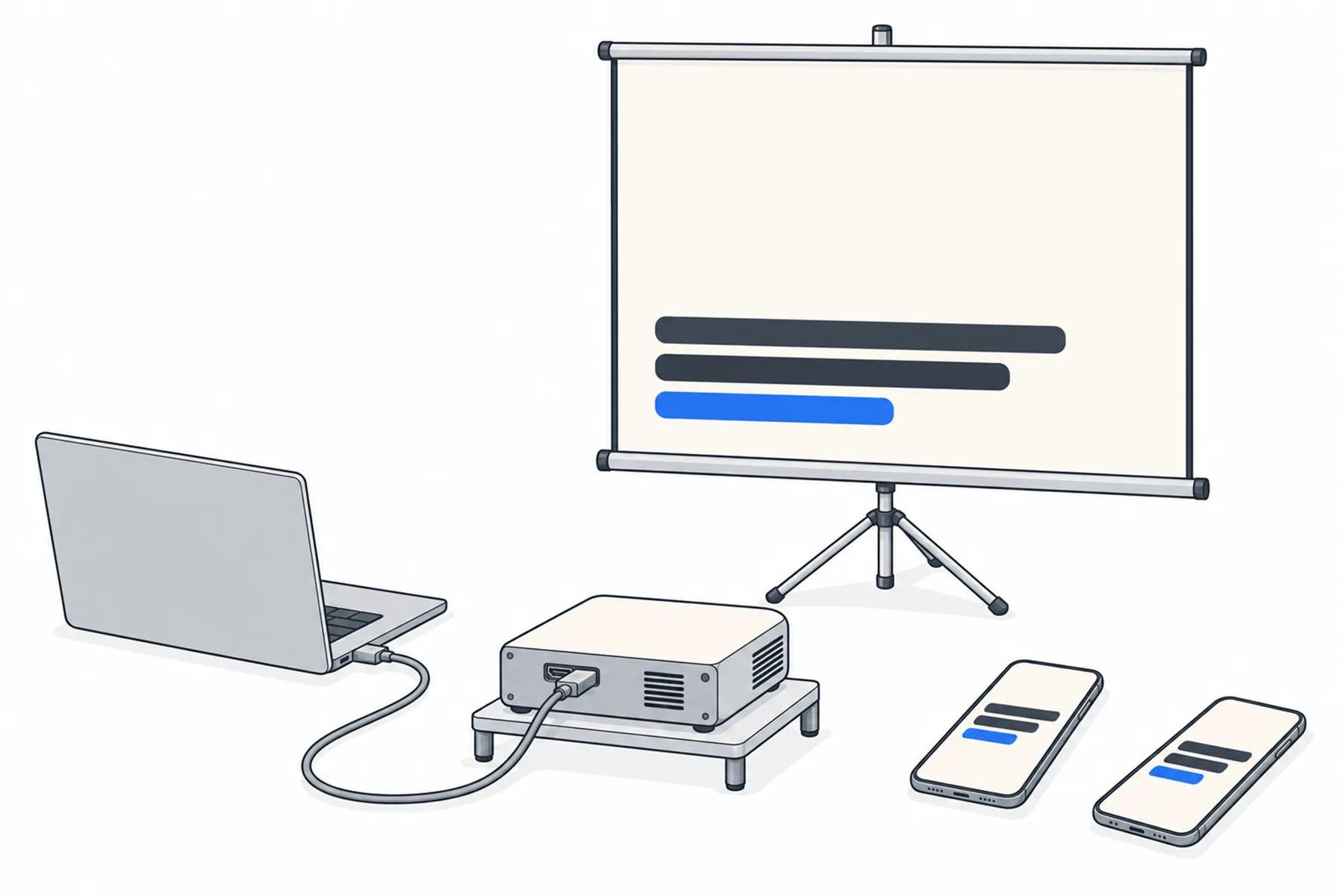
Show live captions on the projector and on every phone.
Open the venue’s projector link on the computer driving the room screen and press F; it
shows one language for the whole room. Put the venue’s QR code on the screen before you
start and on paper by the doors; every phone that scans it picks its own language. Both come
from the same session. This guide covers choosing the screen language, making the screen
readable from the back row, placing the QR code where people look, and the ten-minute
rehearsal.
One session feeds two outputs. The room screen is a browser on the display computer,
full screen, showing the language set for the venue. The phones are the audience’s own, each
on the language its owner chose. The sound desk and the desk app on the way in are the same as
ever; this guide is about what the room sees.
Desk appthe room’s sound
internet
SpanVoiceone session
one language
Room screenprojector page, full screen
and every language
Audience phonesreading link, own language
What you are building. The screen and the phones receive the same session, each in the language it was set to; timing can vary a little between devices.
Set up the screen and the phones in six steps
Two links, one session. Most of the work is deciding what goes where.
1
Decide what the room screen shows and what the phones show
The room screen is shared, so it carries one language, the one set as
The audience reads on the venue’s Settings tab. Pick the language most
of the room needs and cannot get any other way. Phones carry every other language, and
each person picks their own.
Two different settings are easy to confuse. The language being spoken is
set at the desk (the spoken-language tiles in the desk app, or the moderator page) and
changes when a different speaker takes the microphone. The language the screen
shows only changes when the room needs a different output; a room reading
English keeps reading English when the next speaker speaks Spanish. A moderator can change
either mid-event from the moderator page.
The screen and the phones receive the words from the same live session, each in its
selected language. The timing can vary a little between devices and between languages.
SpanVoiceone session
one language
Room screenthe language set for the venue
The screen shows the venue’s language. Every other language goes to phones.
2
Put the projector page on the display
Any display with a browser in front of it will do: a projector, a TV, an LED wall, a monitor
on a stand. A media computer you already use for slides is fine; so is a spare laptop. On
that computer, open the venue’s Projector link,
spanvoice.com/p/<venue code>, from the venue’s Overview page
under For your team or from the desk app under Links & QR.
Press F for full screen and leave it. The page reads
Waiting for translation… until the event starts.
Turn off sleep and screen lock on that computer. A computer that has gone to sleep
leaves a blank room screen.
Give it a wired connection where you can; it is one screen for the whole room.
Bookmark the link or set it as the browser’s home page. It never changes.
If the same computer also runs your slides. The projector page is a full-screen
browser window; it does not sit over a presentation on the same display. Either give the
words their own display, or share a display by giving the browser its own output: on
Windows, press Win+P and choose Extend, drag the browser window
onto the display that will carry the words, then press F there while the
slides stay on the other output. If you have only one output and it is needed for slides,
use phones for the words, or put the caption band over a video feed with the stream page.
Display computerprojector page, full screen
HDMI
Projector or TVany display with an input
The roomreads from the back row
A browser on any computer, full screen, into the display you already have.
3
Make it readable from the back row
Set the look once on the venue’s Projector tab in the admin, and every
screen that opens the link picks it up: background colour, the colour of settled text and of
a line still being spoken, text size, how many lines show (1 to 20), left or centred text, the distance from the bottom and
the sides, how soon the screen clears when nobody is speaking, and whether your logo appears top left.
A new venue starts at size 54 with 12 lines, which fills most of a full-HD screen. Then stand at the back of the room during a test and read it.
Fewer lines, bigger text reads better than many small lines. Twelve lines at the default size suits most screens; a very large hall reads better with fewer, larger lines, say six at size 80.
Test the contrast with the room lights as they will be on the day. Light
text on a dark background is the usual starting point for a projector; a bright TV may
read better with a white background. Read the text from the back row, and change the colours
and size until it is clear.
Leave the bottom clear of heads: the text block sits in the lower part of
the screen. If the screen is low, raise the text with Distance from the bottom
on the Projector tab: 20 starts it 20 per cent up the screen. For one display only, add
?bottom=20 to that display’s link. The link settings are
listed in the help centre under The projector page.
On the display itself, + and − change the size for
that screen only and R puts it back. Set the real values on the Projector
tab so they are right next time too.
Unfinished words are shown in the same colour as settled text unless you pick a different “Text still arriving” colour on the Projector tab. A line may still change a little while the sentence is finishing. That is normal.
4
Give people the phone link where they already look
The venue’s reading link, spanvoice.com/v/<venue code>,
never changes, so it is safe to print. From the venue’s Overview page, press
Print sign for an A4 sheet of fifteen small stickers, each with the QR code and the short link, and
Download QR for a code to drop into a slide or to print larger. The QR signs guide covers size and placement.
On the screen before you begin, as a QR code, then switch to the
projector page when the event starts. The desk app’s QR button
shows a large code too.
Printed by each door, on the lectern, on tables. One sign per entrance
catches late arrivals.
Sent ahead in the programme, the ticket or a message, for people who
like to arrive with it open.
People open the link, pick a language and read. Nothing is installed and no account is
made. Anyone who wants to listen instead needs their own earphones, so say so in the joining
information if spoken translation is on for the venue.
QR on the screenbefore the event
scan
Each phonepicks its own language
A QR code on the screen and on paper by the doors; every phone chooses for itself.
5
Rehearse both, from the back of the room
Start a short session from the desk app or a test recording. Check the room screen fills
and reads from the last row, and open the phone link on your own phone in a different
language. Then stop the session and watch both go back to waiting. Ten minutes once, in the
empty room, saves a scramble with people in the seats.
6
On the day
The screen is already open, so when the desk presses Start streaming the
words appear by themselves. Someone who arrives late sees the QR code by the door and joins
the session already running. If a speaker switches language, the operator or a moderator
changes the spoken language at the desk or on the moderator page; the screen
keeps showing the room’s language and the phones keep showing each person’s.
Screen or phones: which carries what
They are not rivals. The screen is for the whole room; the phones are for each person.
Room screen
Phones
Languages
One, chosen for the venue; a moderator can switch it mid-event.
Any of the sixty, each person picks their own.
Who controls it
The operator or a moderator.
The person holding the phone.
What it costs
Captions are charged per hour for each language in use, and the screen’s language counts as in use while the screen shows it, even if no phone is reading it. If phones are reading that language anyway, the screen adds nothing. Rates on the pricing page.
However many phones read a language, it is charged as one language. A language no phone and no screen is showing costs nothing.
Best for
A room where most people share one second language, and anyone without a phone.
A mixed room, visitors, anyone who wants a different language or bigger text.
What it needs
A display, a computer with a browser, internet, and the projector link.
The QR code where people can see it, and the venue’s internet or a phone signal.
Spoken translation
No. The screen is text only.
Yes, with earphones, when voice is on for the venue.
Troubleshooting the screen and the phones
Check the display computer first, then the link, then the session.
The room screen is blank
Check in order: the display is on the right input; the computer is awake and not locked; the browser is on the projector link and full screen; a session is actually running. A small red dot bottom right means the page has lost its connection and is retrying.
The screen says Waiting for translation
Nothing has been said for about 25 seconds, or no session is running. It is not a fault; the next sentence brings the text back. To keep the last lines on screen longer, change Clear the screen after silence on the Projector tab; Never leaves them up. For one display only, add ?idle=120 (seconds) to its link; ?idle=0 never clears.
Text is too small from the back
Reduce the number of lines and raise the size on the venue’s Projector tab, then check again from the last row. Keys on the display change that screen only.
The screen is in the wrong language
The venue’s language is set on the Settings tab, and a moderator may have changed it mid-event from the moderator page. Set it back from either place.
A phone shows Off air while others read
Check the link first: is it this venue’s reading link, from the current sign? Then the phone’s own connection, and whether a reload brings the session back.
Phones work, the screen does not
Check the display computer: the projector link is open, the venue’s language is set, the browser has not been left on another tab, then its connection. Phones are on their own networks, so they prove the session, not the display computer.
Still unsure
Questions from the room
Tell us the room and the screen you have and we will say what size, how many lines and where to put the code.
No. The projector page shows the one language set for the venue, so everybody in the room
reads the same thing. Every other language is on phones, where each person chooses.
Do we have to show captions on the screen at all?
No. Many venues run phones only. The screen helps when most of the room shares one second
language, or for people who do not have a phone with them.
Can we put the captions in our slides software instead?
Not inside the slides. The projector page is a full-screen web page and needs its own display
or its own output from the computer (see step 2). To put a caption band over a video feed,
including one carrying your slides, use the caption page made for OBS and vMix; see the
stream page.
Does the screen add to the cost?
Captions are charged per hour for each language in use, not per screen or per phone. The
screen’s language counts as in use while the screen shows it. If phones are reading that
language anyway, the screen adds nothing.
What happens to the phones when the event ends?
They show Off air and wait. The link is the same next time, so a sign printed today is still
right next year.
Where to go next
Put the words on the wall and in every hand.
The free credit lets you test the screen and the phones in your own room. No credit card needed.