A week before
- Venues created, one per room
- Kind of room set
- Screen language chosen
- Names in the Glossary
- Signs printed
- Link in the programme and joining information
- Earphones mentioned
- Operator or moderator named
Setup guide
Plan the languages your audience needs, how you will capture the speaker’s voice, and where people will read or listen. Then assign an operator, estimate the cost and rehearse the setup. This guide takes you through those decisions in order and links to the equipment instructions for each.
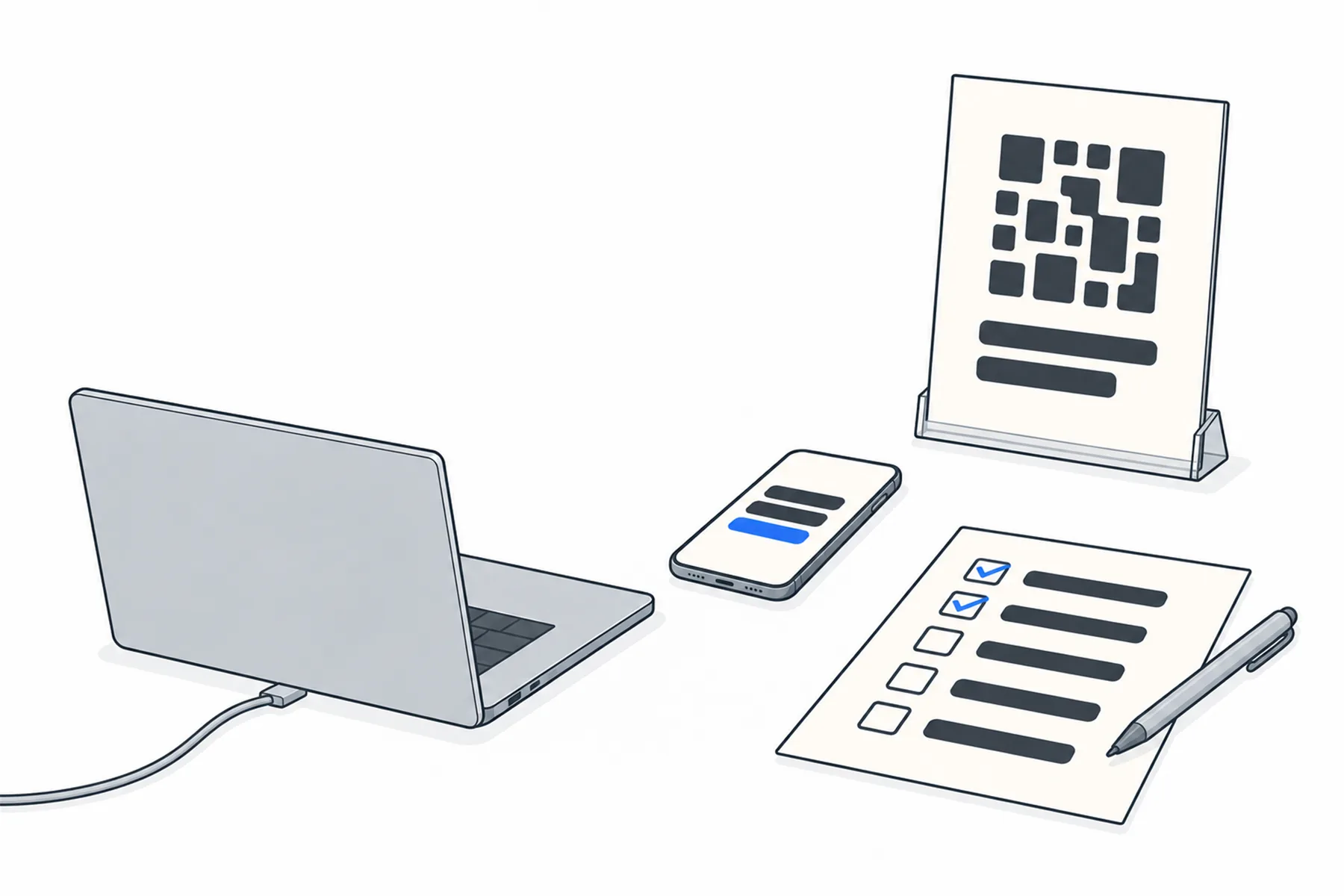
Sound in from one microphone to one computer; one session per room; the words out to a shared screen in one language and to every phone in its own. The planning is mostly about the two ends: how the voice gets in, and where people find the link.
Most are made once and reused for every event after.
Start with the room, not the technology. Who is speaking, in which language, and who in the audience will not follow it? You do not need to reserve language slots: each person picks their own on their phone, and a language nobody opens costs nothing. Still, ask about language and listening needs beforehand where you can, and check the available languages before promising one. What you do need to decide is whether the room needs a shared screen in one language, whether anyone will want to listen rather than read, and whether speakers will change language during the event.
Everything downstream depends on a clean feed of the speaker’s voice and nothing else. A venue with a sound desk takes a spare output into a USB interface and the Windows desk app. A room with no desk streams from a browser on a laptop, tablet or phone placed near the speaker. Decide this early: it tells you what to bring, and it is the part worth rehearsing.
In the admin, each room that streams on its own is a venue: its own links, its own QR code, its own settings. One hall is one venue. Two breakout rooms running at the same time are two venues, each with its own computer feeding it. Create them before the day so the signs can be printed.
On each venue’s Settings tab: the kind of room (General, Worship, Business or Education, which shapes the wording), the language usually spoken, the language the room screen shows, and whether spoken translation is available. On the Glossary tab, add the names that must come out right: speakers, places, your organisation’s own terms. Glossary entries help with names and specialist terms; they do not guarantee every rendering, so check a transcript after the rehearsal.
The venue’s reading link never changes, so it can go into the programme, the ticket, the slide before the event starts, and on printed signs by each door. From the venue’s Overview page, Print sign gives an A4 sheet of fifteen small stickers, each with the QR code and the short link; Download QR gives a code for a slide or a larger sign. Say in the joining information that anyone who wants to listen rather than read needs their own earphones.
Tell speakers two things: keep to the microphone, and pause a moment at the end of a sentence now and then; the words follow the sentence by a few seconds, and a short gap helps readers keep up.
Somebody starts the session, pauses it during music or a break, changes the spoken language when a speaker changes, and stops it at the end. At a desk that is the operator in the desk app. Anywhere else it can be a moderator on their own phone: the moderator page can pause, resume and change the spoken language without touching the computer. Name that person before the day and give them the moderator link.
Pausing and stopping are different. Pause audio keeps the session on air and tells readers it is paused; nothing is translated, but paused time still counts towards what you are charged. Stop streaming ends the session, and the gap until the next start costs nothing. So pause for a song or a short interruption, and stop for a long break.
A single run stops by itself at three hours, with a warning ten minutes before and a button on the browser streaming page to keep going for another hour (the desk app does not extend; press Start to begin a new run). A run that has heard nothing and has nobody reading for 45 minutes stops by itself too.
Captions are charged per hour of session, for each language that somebody is reading, whatever the audience size. Spoken translation is optional and charged separately, per minute of audio produced, for each language. A two-hour event with three caption languages active throughout is six language-hours, A$6.30 for captions at today’s rate in AUD. There is no monthly fee and no charge per listener. The calculator works it out for your hours and languages; the free credit when you sign up is there for a rehearsal.
If you run parallel rooms, each room is its own session with its own hours. Two rooms for two hours is four session-hours, times the languages read in each.
Ten minutes with nobody there finds the unplugged cable, the sleeping computer and the display on the wrong input. Start a short session, say a sentence with a name and a number in it, and check that the words arrive on your own phone and on the room screen. Then ask someone who understands one of the target languages to read a short sample, names and numbers included; arrival proves delivery, a reader proves accuracy. Put on a receiver if you feed a headphone system, press pause and resume, then stop. Afterwards read the transcript in the admin; if a name came out wrong, add it to the Glossary. Do it again after anything changes at the desk, and do a last check as people arrive: a full room changes the background noise and the network.
Decide before the day who checks a fault and who tells the speaker if the translation stops, and agree whether to pause the programme or carry on while it is restored. If people depend on the translation to take part, carrying on can leave them out. Then check in this order, from the sound to the screen:
Pick the row that looks like your event. Each links to the relevant setup information.
| The room | Sound in | Words out | Guide |
|---|---|---|---|
| A hall with a sound desk and a projector | Desk aux output into a USB interface and the desk app | Room screen in the main second language, phones for the rest | Mixer to computer, Projector and phones |
| A meeting room, no desk | A laptop or tablet near the speaker, browser streaming | Phones; a TV with the projector page if there is one | Projector and phones |
| A venue that already hands out receivers | As above | Phones, plus one language fed into the headphone system | Headphone system |
| Two rooms at once | One computer per room | One venue per room, each with its own links and signs | Two rooms at once |
| An overflow room or a venue with a hearing loop | As above | The translation played into a PA zone or an existing loop, where the room agrees | PA and hearing loop |
| A streamed or hybrid event | The desk feed as above | Phones in the room; a caption band over the video for the stream | Captions over your stream |
| A walking tour or outdoor talk | A phone clipped near the guide, browser streaming | Phones, with earphones for spoken translation | Tours and guided visits |
The short version of this page, as a checklist.
Still planning
Tell us the rooms, the languages and the day, and we will say what to set up and what it will cost.
Talk to usThe free credit lets you rehearse the whole thing in your own room. No credit card needed.
A$10 of free credit when you sign up, no credit card needed. Credit never expires — use it this week or next year.