Another computer is already streaming
Another machine is streaming that venue. Check whether the key on this computer is the right room’s. If it is, and the other connection is yours to stop, press Take over.
Setup guide
Use this setup for conference breakout rooms, parallel workshops or separate halls with different speakers. Each room gets its own venue, streaming device and audience link, keeping the sessions separate. This guide covers when you need a second venue, how to set it up, and how to avoid mixing the rooms up.
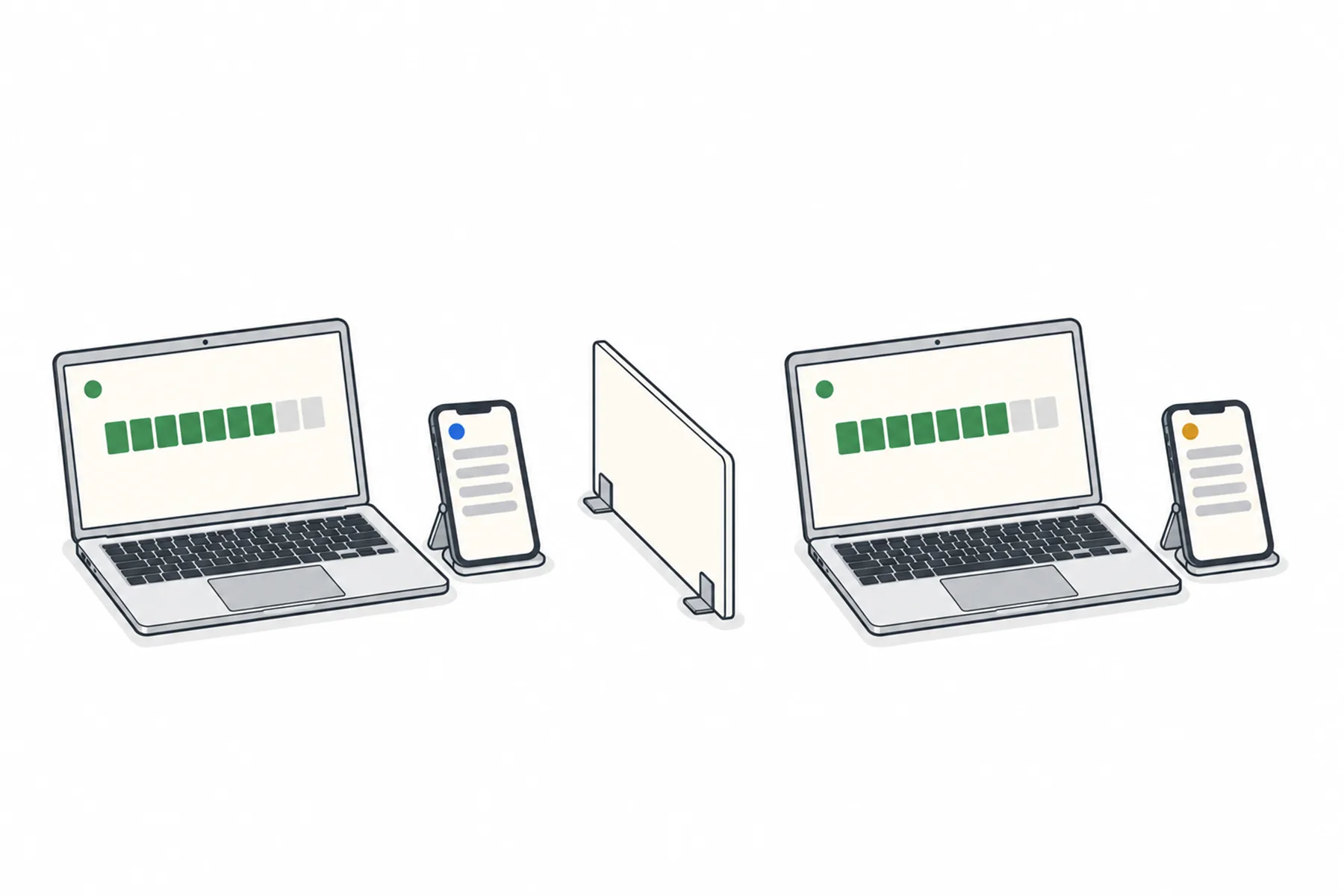
A venue is one room with one event at a time. For two rooms at the same time, you add a second venue and run each from its own computer or tablet. They are separate sessions, so each has its own links, glossary, people and hours.
Do this a day ahead, not on the morning.
A venue is one room, and it runs one event at a time. You need a separate venue for each independent session running at the same time, which means different speakers in different rooms. An overflow room that follows the same speaker is not a second session: it is the same event, and everyone can use the same audience link.
For rooms used one after another, such as a morning session and an afternoon session in the same hall, one venue is enough. Separate venues are optional if you want different links, signs and glossaries. Adding a venue has no fee, and each room’s translation usage is charged separately.
Sign in to the portal, open Venues and press Add venue. Give the room a name people can tell apart, up to 60 characters and different from your other venues, such as “Hall A” and “Hall B”. The region is suggested from your organisation’s country, so keep it unless your events take place elsewhere. It cannot be changed once the venue exists, though the audience links are the same whichever region serves it.
A new venue starts as General, with its own streaming key already created and spoken translation available. Set the kind of event and the languages for that room, and add its glossary. Each venue has its own glossary, so a name taught to one room is not known by the other. The names and terms guide shows how.
Each room needs its own audio feed going to its own computer or tablet, signed in with that venue’s streaming key. The planning guide suggests one computer per room. A tablet can run the second room through the browser streaming page, provided its audio input and browser have been tested with that room’s setup. Check too that each room’s audio feed carries only that room’s speaker, especially if both feeds come from one sound desk.
In the Windows desk app, the key is the venue: there is no venue picker. Open the settings (the gear), go to Venue key, paste the key from that venue, and use Check. Then confirm the venue name in the title bar before you start. For a browser, follow the browser streaming guide and use the key from the second venue.
The same key can sit on several computers, but only one of them can stream that venue at a time. A second computer that presses Start is refused, so label each computer with its room and check the venue name in the title bar before you start.
Every venue has its own audience link, QR code, moderator link, projector page, caption overlay and print sign. Take them from the venue they belong to, and print the sign from each venue rather than copying one. A sign on the door of Hall B should open Hall B, and the QR signs guide covers placing them.
If the room screens or streams differ between rooms, check the projector and phones guide for each one separately.
Moderators and streamers are added to a venue on its People tab. A moderator or streamer added to one venue reaches only that venue, so a helper in Hall A cannot change the language in Hall B by accident. If one person looks after both rooms, add them to both. Owners reach every venue, and administrators reach the venues chosen for them.
Run both rooms together before the day, with the same computers and the same people. Start Hall A and Hall B, then open each room’s audience link on a separate phone. Have the two speakers say different sentences and check that each phone shows only its own room’s speech. Then stop one room and confirm the other carries on. The ten-minute rehearsal goes through what to check in each.
If a computer refuses to start with the notice “Another computer is already streaming this venue”, another machine has that venue’s key and is streaming. Pressing Take over closes the other connection, so use it only when you are sure the other one is yours to stop.
Two rooms at once is two sessions, each with its own hours and languages.
How many venues you need depends on whether the rooms run at the same time.
| Your event | Venues | Computers |
|---|---|---|
| One room, one event at a time | One | One |
| One room, several sessions in turn | One | One |
| Two rooms in turn, same equipment moved between them | One, or one each if you want separate links and signs | The same computer, with the key of the room in use |
| An overflow room following the same speaker | One, the same event | The one already running the event |
| Two rooms at the same time | One each | One per room |
| Three or more rooms at the same time | One each | One per room |
Most problems come from a key or a link used for the wrong room.
Another machine is streaming that venue. Check whether the key on this computer is the right room’s. If it is, and the other connection is yours to stop, press Take over.
If a connection stays shown after its computer is gone, open the venue’s App tab in the portal and use Disconnect it.
Check which venue the link or QR code came from. Each venue has its own, so reprint the sign from the right venue.
Each venue has its own glossary. Add the name to the venue where it went wrong.
A person added to one venue sees only that venue. Add them on the other venue’s People tab.
Usage is counted separately for each room and language. If the same language runs for two hours in both rooms, that adds up to four language-hours. The billing overview breaks usage down by venue.
Still unsure
Tell us the rooms and when each one runs, and we will tell you how many venues you need.
Talk to usThe free credit lets you rehearse both rooms with your own setup. No credit card needed.
A$10 of free credit when you sign up, no credit card needed. Credit never expires — use it this week or next year.