“Your browser blocked the microphone”
Allow the microphone for this page in the browser’s permission prompt or site settings. Then check the device itself allows the browser to use the microphone, and try again.
Setup guide
A phone, tablet or laptop with a browser can send speech for live translation with nothing to install. This is the organiser’s streaming device; the audience opens a separate listening link on their own phones. This guide shows who can stream, how to place and prepare the device, how to open the streaming page, and how to start, share the link and stop.
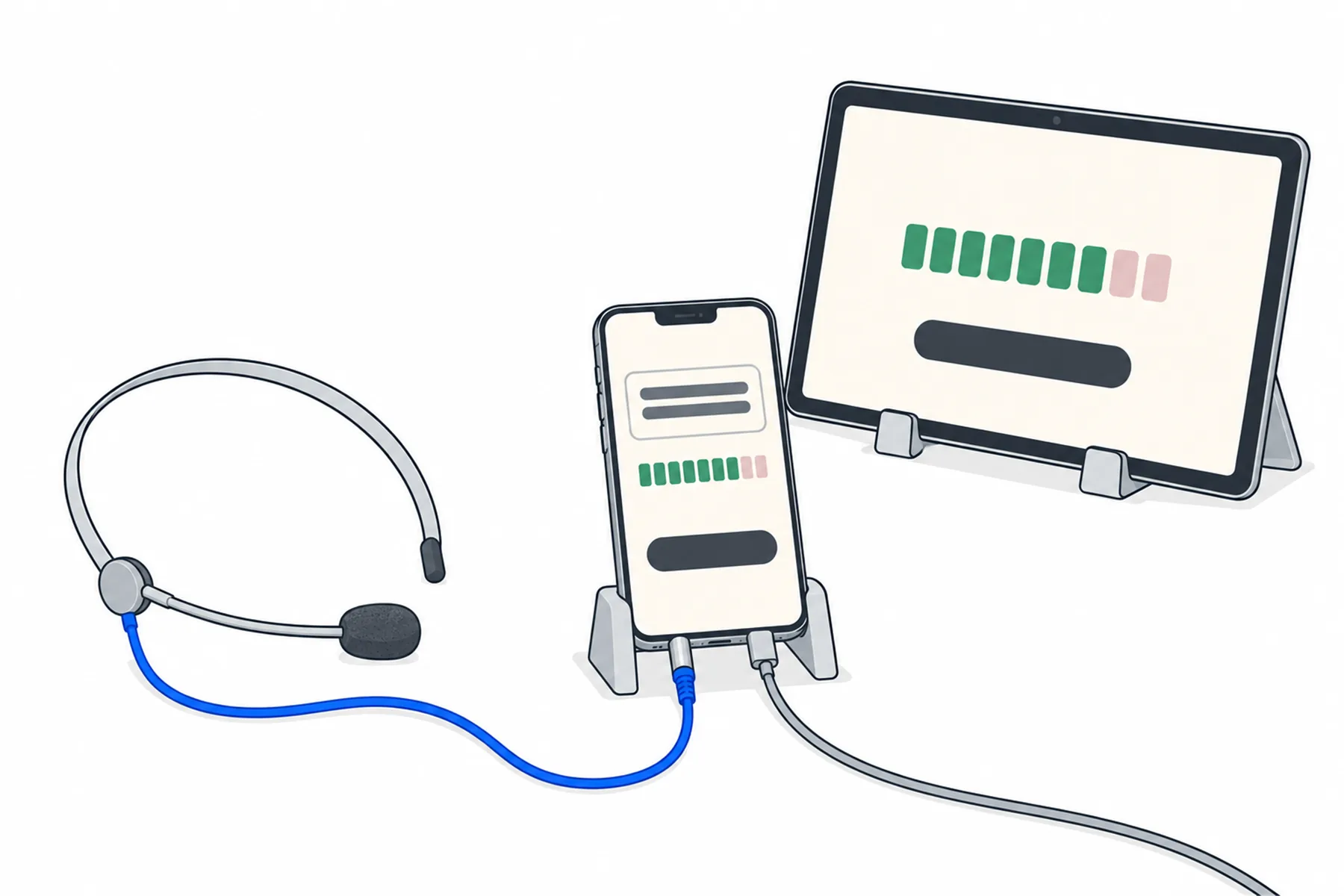
The speaker’s voice goes into the device’s microphone, the streaming page sends it to SpanVoice, and the words reach every audience phone, each in its own language. There is no sound desk and nothing to install; the device only has to stay awake and online.
Most of the work is before the day: access, a good position and a rehearsal.
The browser streamer does the desk app’s job from a browser tab: it takes a microphone and starts the event. This is the organiser’s streaming device; the audience opens a separate listening link on their own phones. It suits these rooms:
For a room with a mixing desk and a Windows computer at it, the desk app is the better tool: it remembers the input, shows the full transcript and shows every link and code. The table under the steps compares the two.
The streaming page is for people the venue has given access to: a streamer for that venue, or an owner, administrator or venue administrator. Add a streamer on the venue’s People tab in the admin with the role Stream on this venue. They receive an invitation email and choose their own password.
To open the page, sign in to the SpanVoice admin, open Venues and press Browser streaming beside the venue; or on the venue’s page, under Go live, press Open the streamer. The page’s address is spanvoice.com/s/ followed by the venue code, and it does not change, so you can bookmark it. The browser remembers the sign-in for 30 days, so on the day you can open the bookmark directly. If it asks you to sign in again, the sign-in has expired or the access has changed.
Do this on the device you will use, a few days before, not at the lectern as people arrive.
The device is the sound source for the whole event, so give it a good position:
The page lists every audio input the browser offers. A microphone plugged into the device, such as a headset or a USB microphone on a laptop, is usually better than the device’s own. Use a microphone and adapter that are compatible with the device: some adapters carry headphones but not a microphone, and a phone with one port may need an adapter that carries both audio and charging. Connect the microphone before you start, then confirm that speaking into it moves the meter and produces words. The page turns off the browser’s own noise suppression, echo cancellation and automatic gain, so what the microphone hears is what is sent. The audio level guide covers what to check once it is running.
Open the streaming page. The first time, the browser asks to use the microphone: allow it for this page. Then choose what to listen for:
If the microphone is blocked, there are two permissions to check: the browser’s permission for this page, and the device’s own setting that allows the browser to use the microphone. Allow both, check the microphone is connected and chosen in the list, close any other app that may be using it, and try again.
Press Start streaming. The status shows Connecting, then Live, and the caption under the button reads “You are on air — keep this tab open.” While live, the page shows a level meter and a box with the latest words heard in the room.
Talk, or have the speaker talk, and watch the meter move and the words appear. Press Share the listening link to show a QR code and the audience link on the device’s screen, then open the link on a second phone and read the words there.
Rehearse the whole thing once with the room empty: start, talk, watch the meter, open the link on another phone, stop.
Keep the streaming page visible and the device awake. The page asks the browser to keep the screen on, but the device’s power settings can override that. It also asks the browser to confirm before the tab is closed while live, but browsers, especially on phones, may not show that, so do not rely on it. Locking the phone or switching to another app can interrupt streaming, so leave it on the page.
Press Stop streaming when you finish and confirm Yes, stop streaming. Anyone listening loses the translation straight away.
Both run the same event. The difference is the sound source and what you can see.
| Browser streamer | Windows desk app | |
|---|---|---|
| Install | Nothing. A current browser on a laptop, tablet or phone. | The desk app, on a Windows computer. |
| Sound source | The built-in microphone, or any compatible audio input the browser lists for the device. | Any recording device Windows lists, including an audio interface carrying a desk feed, with a meter and a saved input choice. |
| Sign-in | Your account, as a streamer or an administrator. | A streaming key for the venue. |
| What you can see | A level meter and a box with the latest words heard. | The full transcript window, and every link and code. |
| Test file | No. | Yes, to rehearse from a recording. |
| Good for | Small rooms, one speaker, no desk, or a computer you cannot install on. | A room with a mixing desk and a Windows computer at it. |
The message on the page usually says what to do. These are the common ones.
Allow the microphone for this page in the browser’s permission prompt or site settings. Then check the device itself allows the browser to use the microphone, and try again.
Check the microphone is connected and the device allows the browser to use it. With an adapter, check it carries a microphone and not only headphones. If it still is not found, try another device.
Another app may be holding the microphone. Close it and try again.
Locking the phone or switching to another app can interrupt streaming. Keep the page visible, plug the device in, check its screen-timeout and battery-saver settings, and press Start streaming again if it stopped.
Only one source can stream to a venue at a time. Stop streaming on the other device, or press Take over from here, which disconnects the other one.
The sign-in has expired or your access to the venue has changed. Follow the Sign in link, and ask an administrator if you still cannot reach it.
Check the right microphone is chosen, nobody has muted it, and the browser is allowed to use it. Then check the speaker is close enough to the device.
Read the message on the page: it says why. A time limit, the idle stop, an administrator or the account can end a session. Press Start streaming to begin a new one.
Still unsure
Tell us the room and the device and we will tell you whether the browser is enough.
Talk to usThe free credit lets you rehearse in your own room. No credit card needed.
A$10 of free credit when you sign up, no credit card needed. Credit never expires — use it this week or next year.