Nothing appears at all
Check the source uses the captions link and not the projector or audience link. Check an event is running and that someone has spoken a sentence, because the band stays hidden until there are words.
Setup guide
If you stream or record video, the same translation the room reads can sit over your picture, so people watching online read it too. It is one page added to your streaming software as a browser source. This guide shows where to find the link, how to add it, how to place and style the band, and how to test it before you go live.
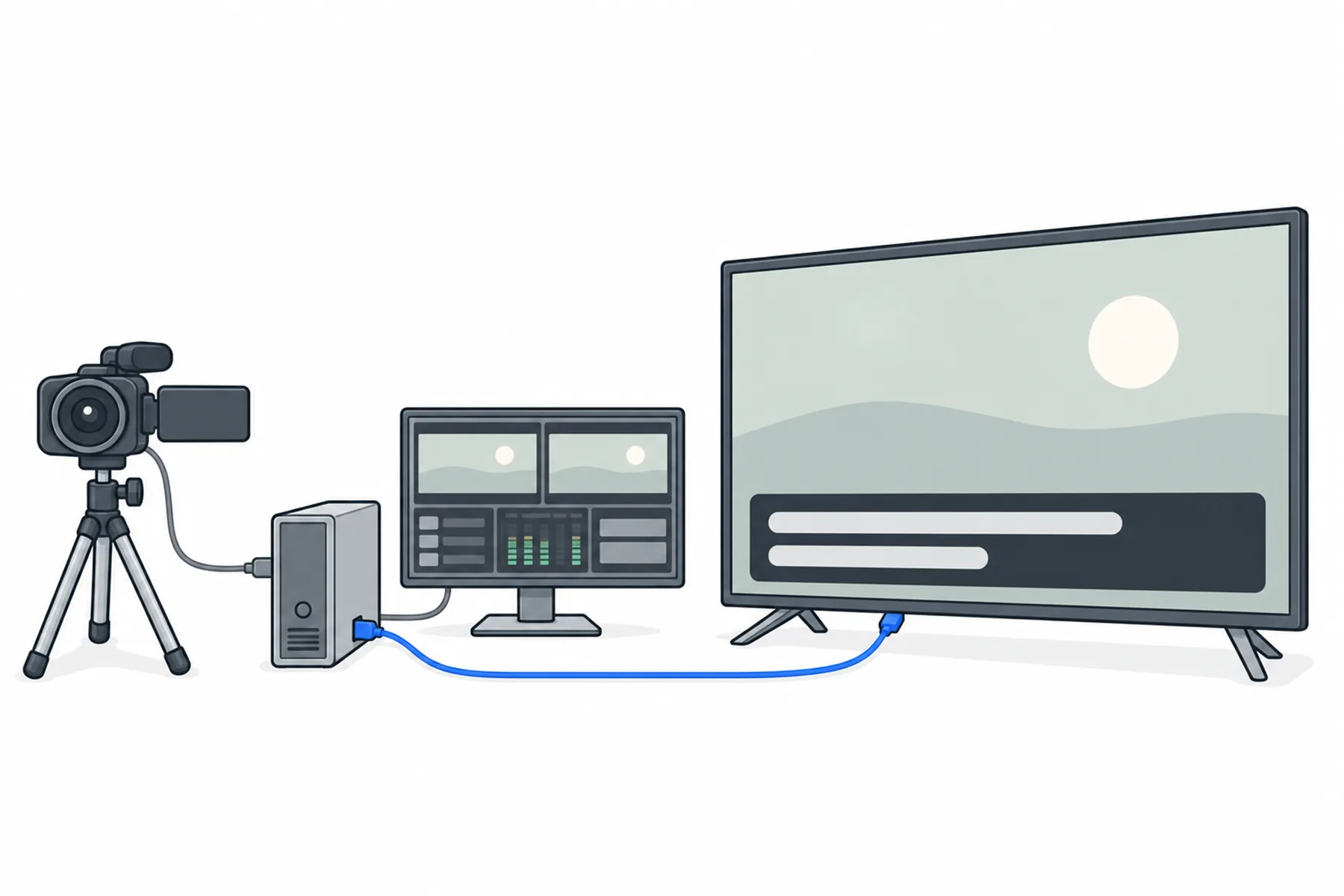
The words from the room reach the caption page, and your streaming software draws that page over the picture. Nothing is installed, and nobody operates the page during the event.
Most of the work is the first time. After that the link stays in your saved scene.
Adding the caption page to your streaming software does not start anything by itself. Before it can show words, the speaker’s audio has to reach the same venue through the desk app or the browser streamer. The caption page only displays the resulting text. It does not listen to your camera or to your streaming software.
If that is not set up yet, start with the mixer to computer guide, the USB audio interface guide or the browser streaming guide.
These captions are drawn into the video picture. Viewers cannot switch them off, and they cannot change their language with the video player’s own caption controls. A recording that includes the overlay keeps the captions in the picture. They show one language, the one set as The audience reads on the venue’s Settings tab, and a moderator can change it during the event. If online viewers should choose their own language, give them the listening link as well.
Each venue has a captions link of the form spanvoice.com/c/ followed by the venue code. It needs no sign-in and does not change, so it is safe to leave in a saved scene.
You can copy it from the venue’s page in the admin, under For your team, where it is labelled Captions, or from the desk app under Links & QR. Make sure it is the captions link and not the projector or the audience link: they look similar and show different pages.
These sizes are for a 16:9 picture, 1920 × 1080. For another shape, such as a vertical stream, the layout needs adjusting and this guide does not cover it.
In OBS
In vMix
The page is already transparent, so leave the background alone. The band sits near the bottom of the page by default.
A source only shows where it has been added, so check this before you go live.
In OBS, reuse the same caption source in every scene that needs it, using Add Existing, or put it in its own scene and nest that scene inside the others. Then open the source’s properties and check two options:
Then switch between your scenes during the test and check the captions carry on.
In vMix, keep the Overlay channel that holds the captions switched on while you cut between the camera inputs underneath it, and check it stays on across the cuts you use.
How the band looks is set on the venue’s Caption tab in the admin: the text colour, the colour and opacity of the band behind it, the font size, how many lines show (1 to 6), whether the band sits at the bottom, middle or top, left or centred text, the distance from the edge, the width of the band and how soon the caption clears when nobody is speaking. Press Save and an open overlay follows within a few seconds. The tab has a live preview over a stand-in backdrop. Two lines at the bottom is the default and suits most streams; use the top if your picture already has a lower-third graphic.
For a change on one computer or one source only, add settings to the end of the link, for example ?lines=1&size=36&pos=bottom&margin=8. Anything in the link overrides the Caption tab for that source. If your software keeps a copy of the page, refresh the source after saving on the Caption tab.
With the scene showing in your software’s preview, start a short event from the desk app, or play the test file, and speak a few sentences. The band should appear with the words, and hide again after a quiet pause. With no event running the band is hidden, so an empty preview is normal.
Then check what viewers will see:
To check the look without a camera, add img= and the address of a still picture to the link. It only supplies a backdrop; no sample words appear, so you still need a running event to see text. Remove it before going live.
The band hides itself after 5 seconds of quiet by default; the venue’s Caption tab can change that. Add idle=0 to the link to keep the latest words on screen, or a number of seconds for a different time. It does not create words when nothing has been said.
Use a question mark before the first setting and an ampersand between the rest. They override the Caption tab for that source only.
| Setting | What it does | Values |
|---|---|---|
| lines | Rows of text in the band | 1 to 6 |
| size | Text size in pixels | 16 to 160 |
| pos | Where the band sits | bottom, top or middle |
| margin | Distance from the top or bottom edge, as a percentage of the height. Not used for middle. | 0 to 40 |
| width | Band width as a percentage of the picture | 20 to 100 (90 if not set) |
| box | box=0 removes the dark band and leaves the text with its shadow | 0 |
| align | Centres the text | center |
| bg | Page background. Leave it alone where you can, because the page is transparent. Green or blue is for software that cannot use a transparent source, and keying also removes any matching colour in your picture or text. | transparent, black, green, blue, or a hex colour without the # |
| img | A still picture behind the band, to preview the look. It is only a backdrop and shows no words. If the address has a ? or & in it, encode it. Remove it before going live. | an image address |
| idle | Seconds of quiet before the band hides. 0 keeps the latest words on screen. | 0 to 3600 (the venue’s setting if not set; 5 by default) |
Most problems are the link, the scene or the size.
Check the source uses the captions link and not the projector or audience link. Check an event is running and that someone has spoken a sentence, because the band stays hidden until there are words.
The source is only in some scenes, or its options are unloading or reloading it. In OBS, reuse the same source in each scene or nest a captions scene, and turn off Shutdown source when not visible and Refresh browser when scene becomes active. In vMix, keep the Overlay channel on while you cut.
Check the source is 1920 × 1080, and that it has not been scaled, cropped or moved in your software. This guide assumes a 16:9 picture.
Move the caption source above the camera in the scene order.
The page has lost its connection and is retrying by itself. The label is drawn on the page itself, outside the band, so it is part of what your software captures and viewers can see it. If it stays on, check the streaming computer’s internet connection and refresh the source if it does not clear. Rehearse this before the day.
Refresh the browser source in your software. Also check the link does not carry its own setting for it, because settings in the link override the tab.
It hides after a quiet period and returns with the next words. Add idle=0 to the link to keep the latest words on screen.
Add bg=green to the link and key the green out in your software. Prefer a transparent source where you can, because keying also removes matching colours in the picture.
Still unsure
Tell us your streaming software and we will tell you how to set it up.
Talk to usThe free credit lets you rehearse in your own room. No credit card needed.
A$10 of free credit when you sign up, no credit card needed. Credit never expires — use it this week or next year.