The button is missing
Spoken translation is off for the venue. Turn on Available at this venue under Settings and Spoken translation. The Spoken translation is not playing page goes through it.
Setup guide
Your audience already carries a receiver. With spoken translation switched on, anyone can open the audience link, choose a language and hear the translation in their own earphones, with nothing to hand out, charge or count back in. This guide covers how to switch it on, what to tell people, and what to test before the day.
The audience link shows the translation as text. Where the venue has spoken translation on, the same page can read it aloud in the language the person chose, into their own earphones. Readers and listeners share the room.
Most of it is deciding what to tell people.
In the portal, open the venue, go to Settings and, under Spoken translation, check that Available at this venue is on. It is on by default. Until it is on, the listening buttons do not appear on anyone’s phone.
Then decide about Already on when someone arrives. Leave it off for a mixed room, where most people read and a few listen: each listener taps the button themselves, and a language nobody listens to costs nothing in spoken translation, though captions in it are charged separately. Turn it on for a room where most people will listen, such as an audience that cannot easily read a screen. Depending on their browser, listeners may still need to tap to start the sound.
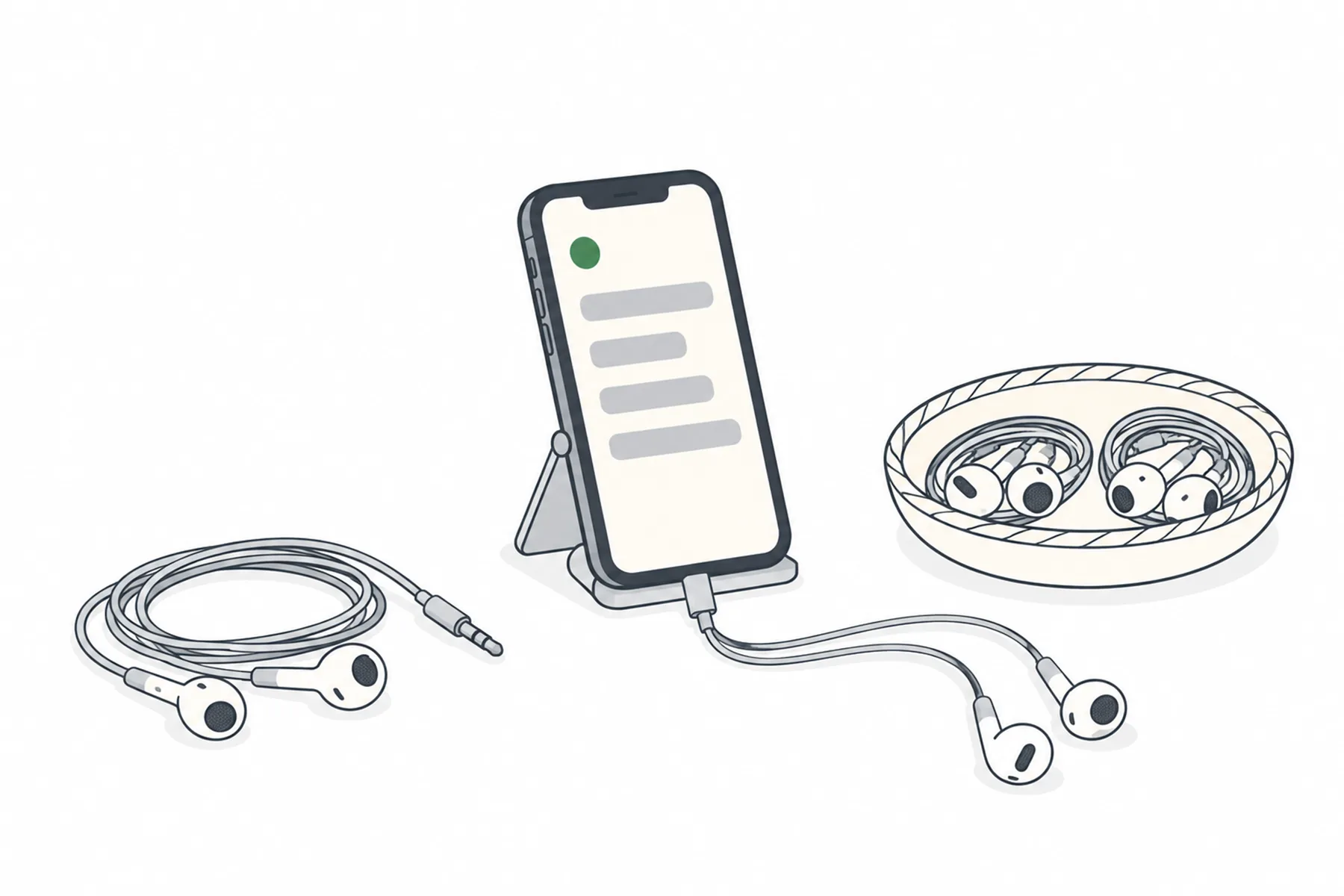
The sound plays from the phone, and a phone speaker next to someone who is reading is a distraction. Ask listeners to bring earphones or headphones that work with their phone, and say so in the invitation, on the programme and on the sign. They need them to listen in the room without playing the translation through the phone speaker. People without earphones can read the captions instead.
If it matters to your event, keep a few spare pairs at the door. Check the connectors before buying spares: some phones need compatible USB-C or Lightning earphones, or an audio adaptor.
Listeners use the same audience link as readers: spanvoice.com/v/<venue code>. Show it as a QR code on the screen before you begin, and on signs and seat cards. The QR signs guide covers where to put them.
Add one line on the sign: Open the link, choose your language, then tap Hear the translation. Nothing is installed and nobody needs an account.
With spoken translation on, the top bar of the reading page has a Hear the translation button. It plays the translation in the language the person has chosen. Changing language changes the voice. Tap it again to stop. Volume is the phone’s own.
Playback with the screen locked varies by phone, browser and settings. For people who want to put the phone away, there are two routes. The simple one needs nothing extra: turn on Keep screen on in the page settings and leave the phone face down. The other hands the sound to a free media player app, VLC. It is off by default because most people do not have VLC; you switch it on under Listening with the screen off on the venue’s Viewer tab, and tell your people to install VLC first. It then appears in the page settings as Open in VLC. The page switches its own sound off when it is tapped, so nobody hears the translation twice. You can also hand people the venue’s Audio link to paste into any player.
The panel that appears says which kind of link it is. Some links follow the page: change language on the page and the player switches on its own, as long as the page stays open. Others keep playing the language they started in, and you open the button again to get a new link. Once the player is connected, the button turns green and reads “Playing in VLC”. To stop that sound, stop it in the player. People who only listen for a few minutes do not need any of this.
Each listener streams audio on top of the text, so the room’s Wi-Fi or mobile signal matters more than for reading alone. The page reconnects the sound by itself if it drops out. The internet guide covers how to check the room.
Start a short session, then on your own phone open the audience link, choose a language, tap Hear the translation and listen with earphones from the back of the room. Check that the translation arrives with a delay that is acceptable for your event.
Lock the screen and check what happens. Then try Keep screen on in the page settings, and Open in VLC if you have switched that on. Playback depends on the phone and its settings, so test the phones people are likely to have, and use what you learn in what you tell the audience. The ten-minute rehearsal goes through the rest.
The short instructions that cover most of the questions in the room.
| If someone | Tell them | What happens |
|---|---|---|
| Wants to listen | Tap Hear the translation | The translation is spoken in the language they have chosen. |
| Wants to change language | Choose another language on the page | The voice changes with the text. |
| Wants to put the phone away | Turn on Keep screen on and leave the phone face down | The screen stays awake while the page is visible. If you have switched on the VLC option and told people to install VLC, they can tap Open in VLC in the page settings instead. Test it on their phone type first. |
| Has no earphones | Read the same page instead | The same translation appears as text. |
| Is the first to listen in a language | Tap the button and wait a moment | They hear it from the next sentence. |
| Hears silence | Nothing is being said, or the event is paused | The voice resumes with the next sentence, or when the pause ends. |
Start with the venue setting, then the phone.
Spoken translation is off for the venue. Turn on Available at this venue under Settings and Spoken translation. The Spoken translation is not playing page goes through it.
Silence can mean nobody is speaking, the event is paused, or the first listener in a language is waiting for the next sentence. If none of those fits, check the phone’s media volume, which is separate from the ringtone volume, whether the sound is going to a different connected Bluetooth device, the earphone connection and the internet connection.
The browser and a media player are both playing. Tap Hear the translation off on the page, or stop one of them, so that only one is left. The Open in VLC button does this for you.
Playback with the screen locked varies by phone, browser and settings. Turn on Keep screen on in the page settings, or, if you have switched on the VLC option, tap Open in VLC, and test it on the phone first.
The voice can fall behind the text, and it catches up on its own. If the delay stays too long for your event, check the room’s internet connection and let us know.
The page reconnects the sound by itself. If it keeps happening, check the room’s internet connection.
Ask people to use earphones, and keep a few spare pairs at the door.
Still unsure
Tell us about the room and who will be listening, and we will tell you how to set it up.
Talk to usThe free credit lets you listen to a rehearsal with your own earphones. No credit card needed.
A$10 of free credit when you sign up, no credit card needed. Credit never expires — use it this week or next year.