The meter does not move at all
Check the right microphone is chosen in the list, and nobody has muted it. Then check Windows is allowing apps, and desktop apps, to use the microphone.
Setup guide
A small room with one speaker does not need a mixing desk. A headset, a USB microphone or the laptop’s own microphone can send the speech straight to the desk app. This guide shows which microphone to choose, where to put it, how to select it, and how to check the level.
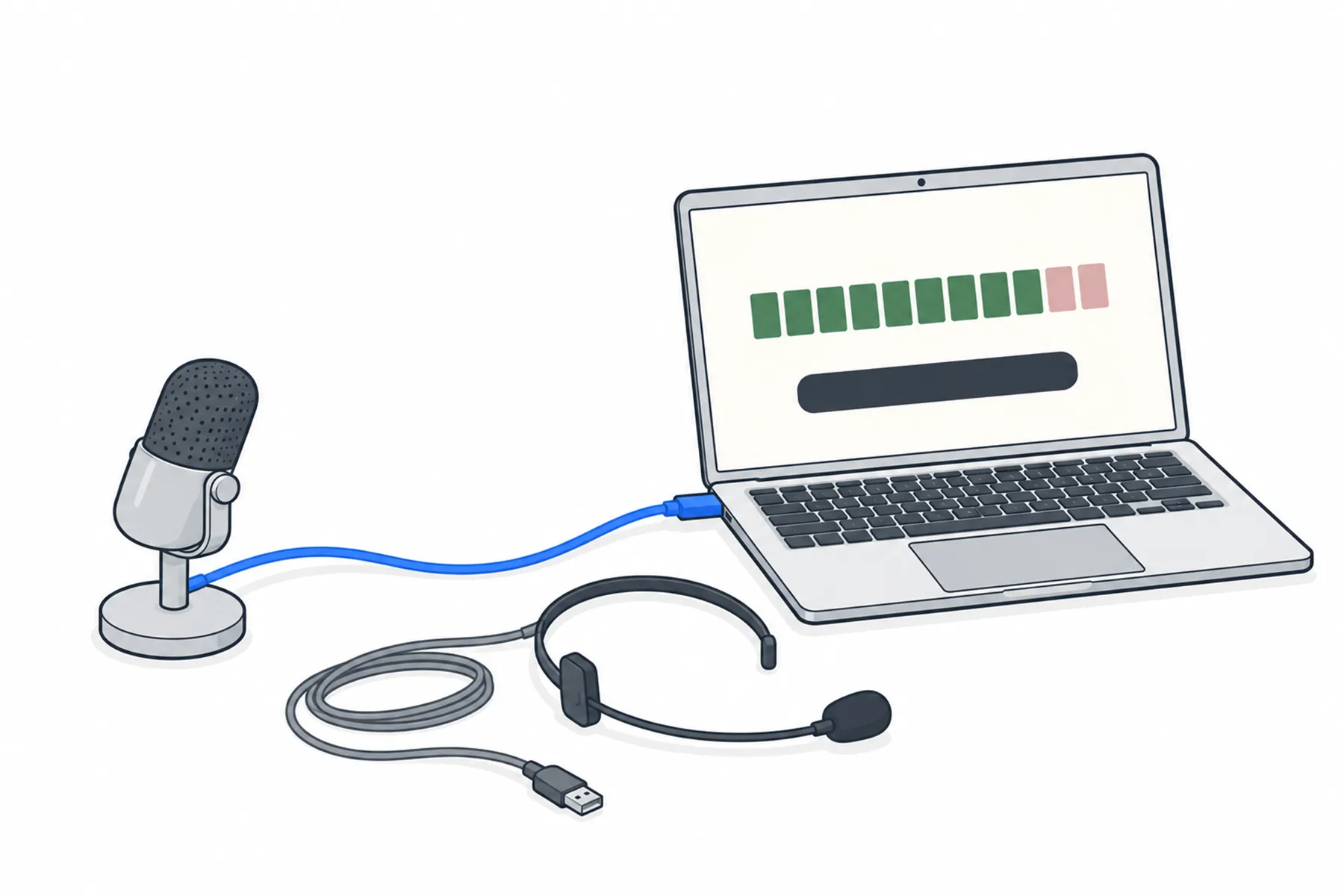
The speaker’s voice goes into one microphone, the microphone goes into the Windows computer, and the desk app sends the sound to SpanVoice. With a USB or headset microphone there is no desk and no interface in between.
Close, pointed at the speaker, and chosen in the app.
One microphone can suit a small room, such as a meeting room, a classroom or a training room, when one person speaks at a time, stays close to the microphone, and the room is reasonably quiet. What matters is less the size of the room than how far the speaker is from the microphone, how much the room echoes and how many people speak.
If the room is large or echoey, or several speakers move about, a microphone on a table hears the room as much as the speaker. Use a feed from a mixing desk instead, starting with the mixer to computer guide.
The closer the microphone is to the speaker’s mouth, the cleaner the words. A microphone that connects to the computer by USB, or a USB headset, appears in Windows as a recording device and connects directly. Other microphones need an adapter, a receiver or an audio interface first. The choices:
A microphone in the ceiling or at the back of the room is usually the one to avoid, because it hears the room as much as the speaker. If audience questions matter, repeat each question into the microphone or hand the microphone to the person asking.
Plug the microphone in before you open the desk app, or press Refresh afterwards. In the Input panel, leave Live device selected and choose the microphone in the list. The list shows the recording devices Windows offers, and the level meter runs as soon as a device is chosen, before you start. Nothing is sent until you press Start streaming. The app remembers the device, but if it comes back under a different name after a restart or a replug, choose it again.
If the meter does not move at all, check Windows is allowing the app to use the microphone. In Windows 11 this is under Settings, Privacy & security, Microphone: Microphone access and Let apps access your microphone need to be on, and so does Let desktop apps access your microphone. If the list says No input device, plug something in and press Refresh.
Have the speaker talk at the speaking position and watch the meter. You want it to move well up, in the green, and stay out of the two red segments at the top. If it is low, move the microphone closer, or raise its input level in the microphone’s own control or in Windows sound settings. If it reaches the red, move the microphone back, or lower its input gain where it has one, and test again. Lowering the Windows level cannot repair sound that was already distorted when the microphone captured it. The audio level guide explains the meter and how to set it.
Then stop talking. With nobody speaking, the meter should drop right down. If it sits halfway up in silence, the microphone is hearing something else, such as air conditioning, a fan or a conversation, and the words that come out of a noisy feed are odd. Move the microphone closer to the speaker, move it away from the noise, or reduce the noise at its source such as the fan or the conversation. Then set the level again and test.
Press Start streaming, speak, and open the audience link on your own phone to read the words. A single microphone cannot tell music from speech, so during music press Pause audio in the desk app and resume when the speaker returns. Listeners see that it is paused. Press Stop streaming when you finish.
A single microphone is the simplest setup there is, and for a small room it is the right one. Test with every speaker you expect, because voices differ in loudness, and improve the setup only if the words show you need to.
All of them end up as one recording device in Windows.
| Microphone | Good for | Watch for |
|---|---|---|
| Headset | One speaker who moves about. The distance to the mouth stays steady. | Check the battery if it is wireless, and that it is the device chosen in the app. |
| Lapel | A speaker who needs both hands free. | Clip it near the chest and keep clothing away from it. It needs a connection the computer can use. |
| USB desk microphone | A seated speaker in a meeting or training room. | It must be close and pointed at the speaker. |
| Handheld wireless with a USB receiver | A speaker who needs to hold a microphone, or a microphone that is passed around. | The receiver needs USB audio output, not charging only. If it only has a line output, it needs an audio interface. |
| The laptop’s own microphone | Trying SpanVoice, or a small quiet room with the speaker beside the laptop. | It may hear keys, the fan and the operator as well as the speaker. |
| A phone or tablet in a browser | No computer you can install on. | See the browser streaming guide. |
The meter tells you most of what you need.
Check the right microphone is chosen in the list, and nobody has muted it. Then check Windows is allowing apps, and desktop apps, to use the microphone.
Nothing is chosen or Windows has no recording device. Plug the microphone in and press Refresh.
Press Refresh. If it still does not show, check Windows sound settings to see whether Windows lists it, check the connection and any driver the maker supplies, then unplug it, plug it in again and press Refresh.
The device would not open. Choose another, or unplug and replug it and press Refresh.
It is hearing something else: air conditioning, a projector or laptop fan, or a nearby conversation. Move the microphone closer to the speaker or away from the noise, reduce the noise at its source, then set the level again and test.
Often the microphone is too far from the speaker, pointed the wrong way, or hearing too much of the room. Move it closer and read the words again. If the sound is clean and the words are still wrong, check the spoken language is set correctly, and that names or specialist words are not the cause.
Move the microphone back, or lower its input gain where it has one, until the meter stays out of the top two segments. Lowering the Windows level alone cannot fix sound that was already distorted.
The microphone is on the operator’s table. Put it with the speaker.
Still unsure
Tell us the room and the microphone and we will tell you whether it is enough.
Talk to usThe free credit lets you rehearse the setup. No credit card needed.
A$10 of free credit when you sign up, no credit card needed. Credit never expires — use it this week or next year.